
Hyper-V and Windows Server Backup sources
AutoRPO can restore-test Hyper-V VMs as well as Proxmox ones. It reads them from a Windows file share:
- Windows Server Backup of Hyper-V VMs, written to a network share.
- Hyper-V exports. Test-failover exports of Hyper-V Replica should work the same way, but haven't been tested yet.
You don't need to run Proxmox in production. AutoRPO's restore host is a small, standalone Proxmox VE host (requirements): it copies each VM's disks from the backup onto that host, boots the copy on the isolated network, checks it and deletes it, as it does for Proxmox backups. The backup itself is never changed or booted.
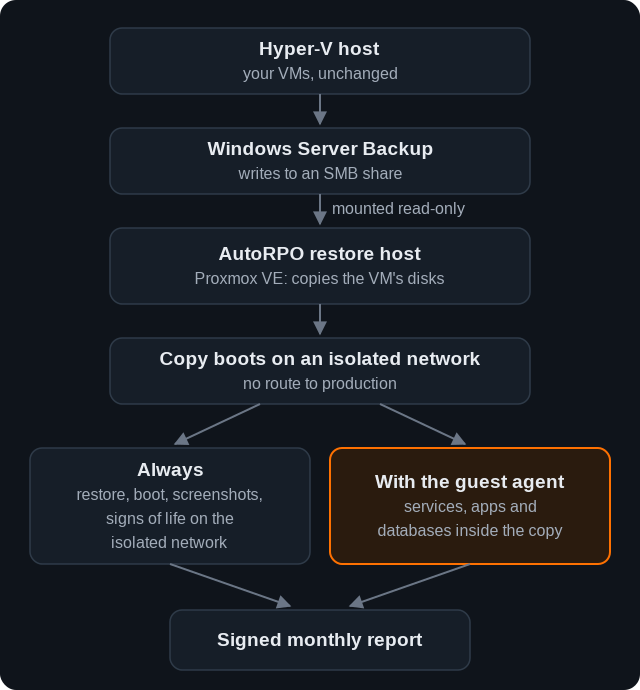 How a Hyper-V VM is tested: the share is only read, and the copy runs on AutoRPO's own host.
Install the QEMU guest agent before the backups run #
A one-off setup step. Install the agent once and Hyper-V VMs get the same checks as Proxmox VMs. AutoRPO runs its health checks, application checks and your own scripts inside each test copy through the QEMU guest agent (the agent Proxmox uses). Hyper-V VMs don't have it unless you install it. Without it, a Hyper-V copy can only be checked from the outside: it restored, it powered on, console screenshots, and signs of life on the isolated network.
The agent can be installed while the VM still runs on Hyper-V. It stays idle there and does nothing until the VM runs on Proxmox, so it's safe to leave installed. AutoRPO tests the copy in your backup, so install the agent, then let the next backup run: the first backup taken after the install is the first one that can be fully checked.
Windows VMs
- Download the VirtIO guest tools installer (
virtio-win-guest-tools.exe) from the virtio-win project. - Run it in the VM. It installs the QEMU guest agent and the VirtIO drivers, including the serial driver the agent talks through on Proxmox.
- On Hyper-V the QEMU Guest Agent service may show as stopped: that's expected, because the channel it uses only exists on Proxmox. It starts when the test copy boots.
Linux VMs
- Install the package:
apt install qemu-guest-agent(Debian, Ubuntu) ordnf install qemu-guest-agent(Red Hat, Rocky, Alma). - On most distributions the service only starts when the agent's channel is present, so it shows as inactive on Hyper-V. That's expected: it starts by itself in the test copy.
Then tell AutoRPO. In Settings → Sources, tick The VMs have the QEMU guest agent installed on the share.
For an export, an optional settings file next to the VM (autorpo-vm.json) can say it per VM instead. Once a copy's agent answers, the
verification level and application checks work as they do for Proxmox VMs.
Add a share #
Open Settings → Sources and add a Hyper-V share:
- Path: the share, for example
\\backup01\Backups. For Windows Server Backup it can be the share root, theWindowsImageBackupfolder, or one server's folder inside it. - Credentials: a Windows account that can only read the share. When you add or check the share, AutoRPO tries to create a test file and refuses an account that can write; it reads the backups through a read-only mount. The password is stored sealed on the restore host.
- Tier and client (optional): as for PBS sources.
- The VMs have the QEMU guest agent installed: see above.
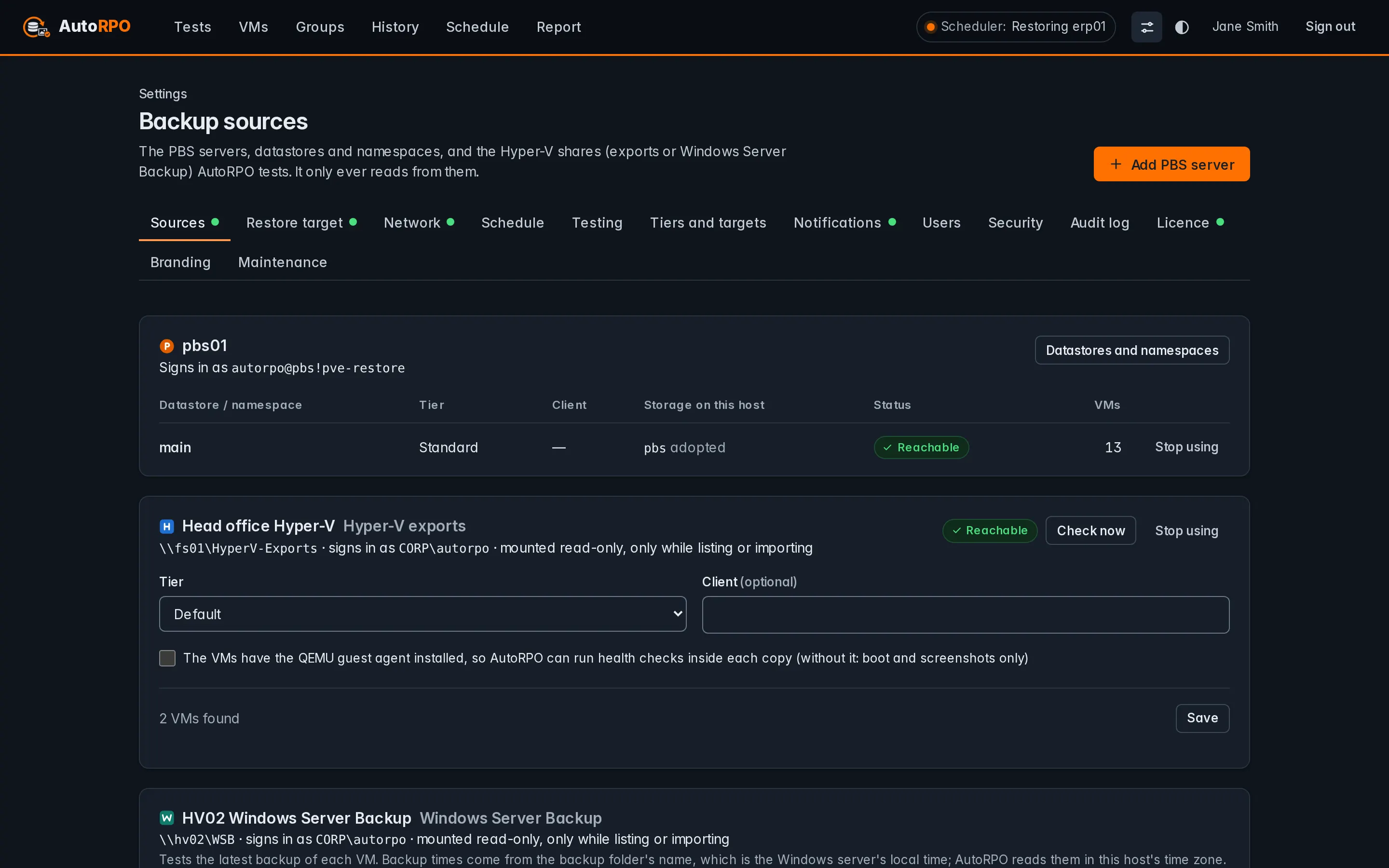 Settings → Sources with a PBS server and two Hyper-V shares.
Check now lists the VMs it found and anything it passed over, with the reason. The restore host needs to reach the file server on TCP 445 (SMB).
What AutoRPO reads #
Windows Server Backup. The newest complete backup of each VM. A backup that's still being written is passed over for the one before it. Backup times are the Windows server's local time; AutoRPO reads them in the restore host's time zone and says so.
Exports. Each exported VM, with its own processor, memory and boot settings, so the copy matches the VM as you
configured it. An optional settings file next to the VM (autorpo-vm.json) can override them. A script to write
that file isn't published yet.
The copy. Each copy is built to boot the way the VM did on Hyper-V, with a network card Windows and Linux support without extra drivers, on the isolated bridge.
Limits #
- The newest version only. A Windows Server Backup to a network share keeps one version; earlier versions on a local backup volume need a Windows helper that isn't available yet.
- Checkpoints. If a VM had a checkpoint when it was backed up, only its base disk is tested, which may be older than the checkpoint. The test says so.
- BitLocker. A VM whose system drive is BitLocker-protected can't unlock on the copy, because the Hyper-V TPM doesn't come across. AutoRPO finds this from the backup and says so on the VM's page. A full test needs BitLocker suspended during the backup, which leaves the key readable in the backup.
- Other backup software isn't supported as a source yet.