
Sign-off
Automatic checks catch most problems, but an auditor wants to know that a person looked. Every test ends with a sign-off.
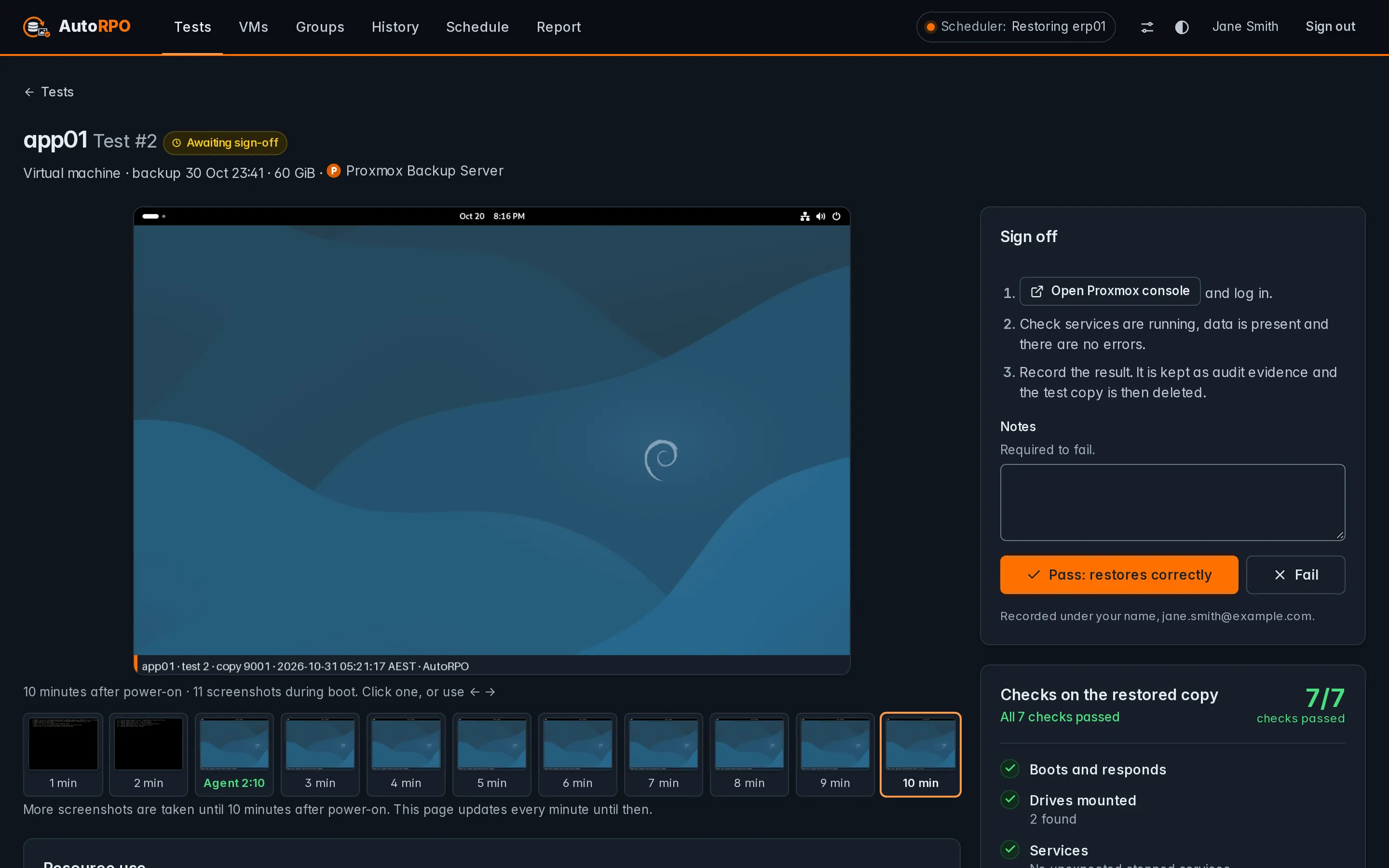 Reviewing a test: screenshots, health checks and sign-off
- When a test copy has booted and its checks have run, it waits for sign-off, and the people you chose are alerted.
- A Reviewer or Admin opens the copy in the Proxmox console (it's on the isolated network, so log in locally), looks at whatever matters for that server, and marks the test Pass or Fail. Notes are required to fail a test, or to pass one whose checks failed.
- The copy is deleted after sign-off, or after 3 days if nobody signs it off (Settings → Restore target).
The sign-off limit (Settings → Testing) caps how many copies wait at once, so test copies don't fill the host; 0 means no limit.
Each sign-off records the reviewer's name and role at the time, and the Restore Evidence Report shows both. Give every reviewer their own account, so the report names a person.
Sign-off options #
Under Settings → Testing → Sign-off and evidence:
- Don't let people sign off tests they started. Someone who starts a test by hand can't sign it off; another reviewer has to. This separates the person asking from the person approving.
- Sign off passed tests automatically. Off by default. When it's on, a test whose copy booted, whose guest agent answered and whose automatic checks all passed is signed off as automatic, and the copy is deleted. People then review only the tests that need a look. Reports and Restore Evidence Reports show which tests were signed off automatically and count them separately. Most auditors expect a person to have looked, so check with yours before turning it on.
Restore groups #
When a group's VMs are tested together, each VM is signed off as usual, then a reviewer signs off the group: did it work as a service? The copies stay until both are done, or until the unsigned-copy limit, when the run expires. A group run doesn't change any VM's coverage or flags.
Failures #
A failed test is retried against the next backup after a day. A VM that fails twice is flagged and taken out of the queue until someone reviews it and resolves the flag. The Restore Evidence Report shows each failure and how it was resolved.
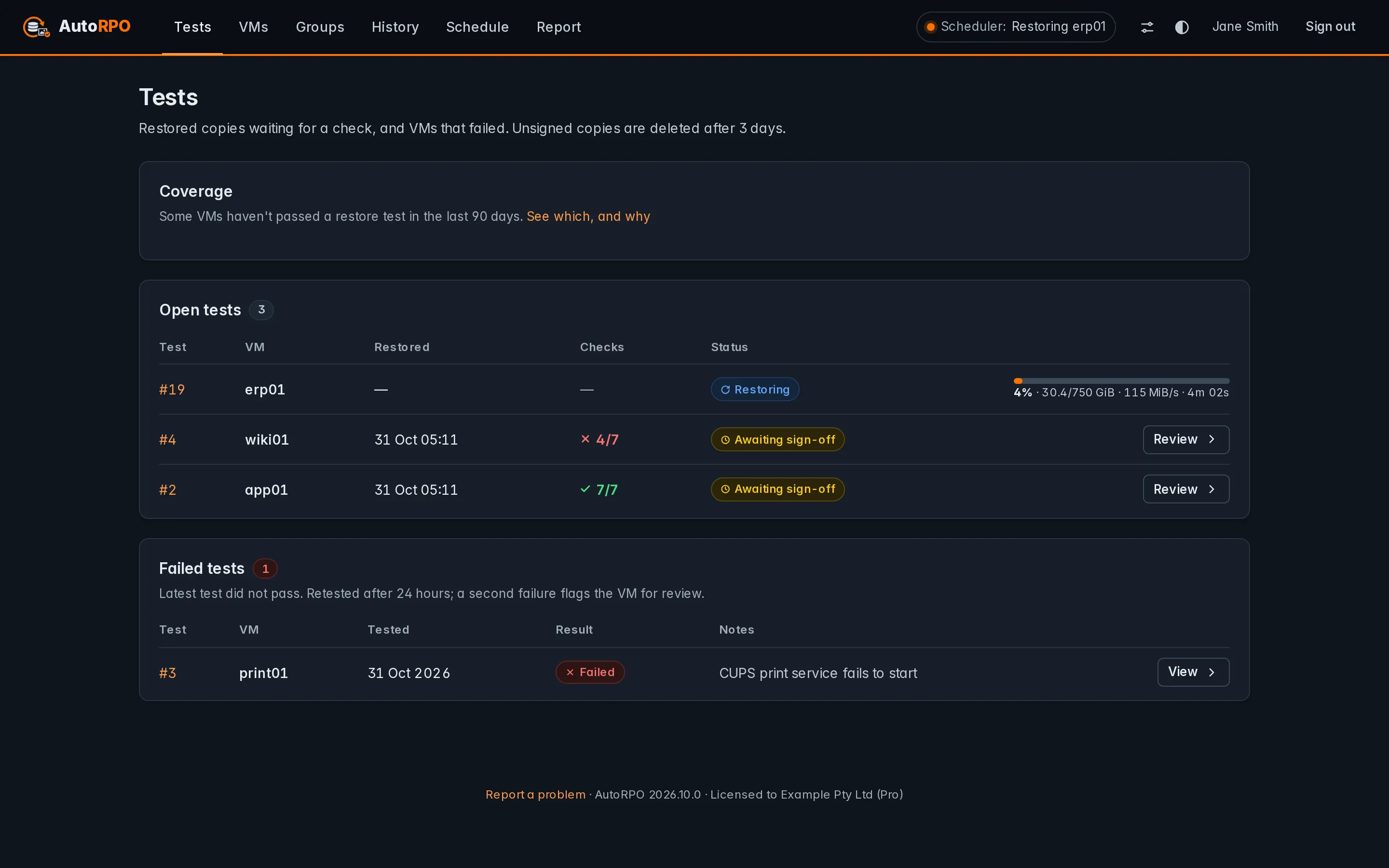 The Tests page lists failures with their notes
Coverage #
The dashboard shows how many VMs on PBS passed a restore test in the last 90 days (per client when you use client labels). The report lists every VM not tested in the last 30, 90, 180 or 365 days, and why:
- failing;
- can't be tested (no encryption key, over the licence limit, BitLocker without its recovery key);
- waiting in the queue;
- left out on purpose (excluded, archival, or BitLocker VMs you chose not to restore).